Original PDF
Download PDF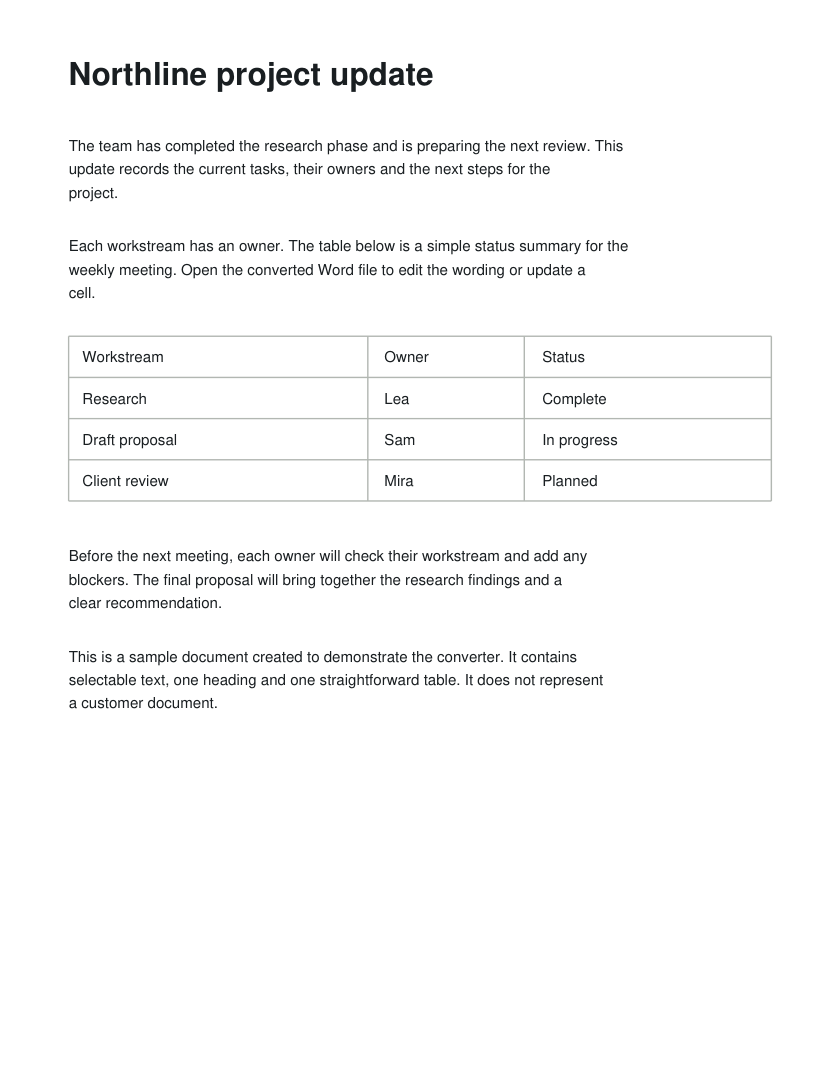
Get editable paragraphs, headings and simple tables. Your document stays on your computer, even with the Wi-Fi off.
One-time payment. Keep it and use it again.
Best for PDFs with selectable text. Scans need OCR first. Designed for editable content, with simpler formatting.
See a real conversion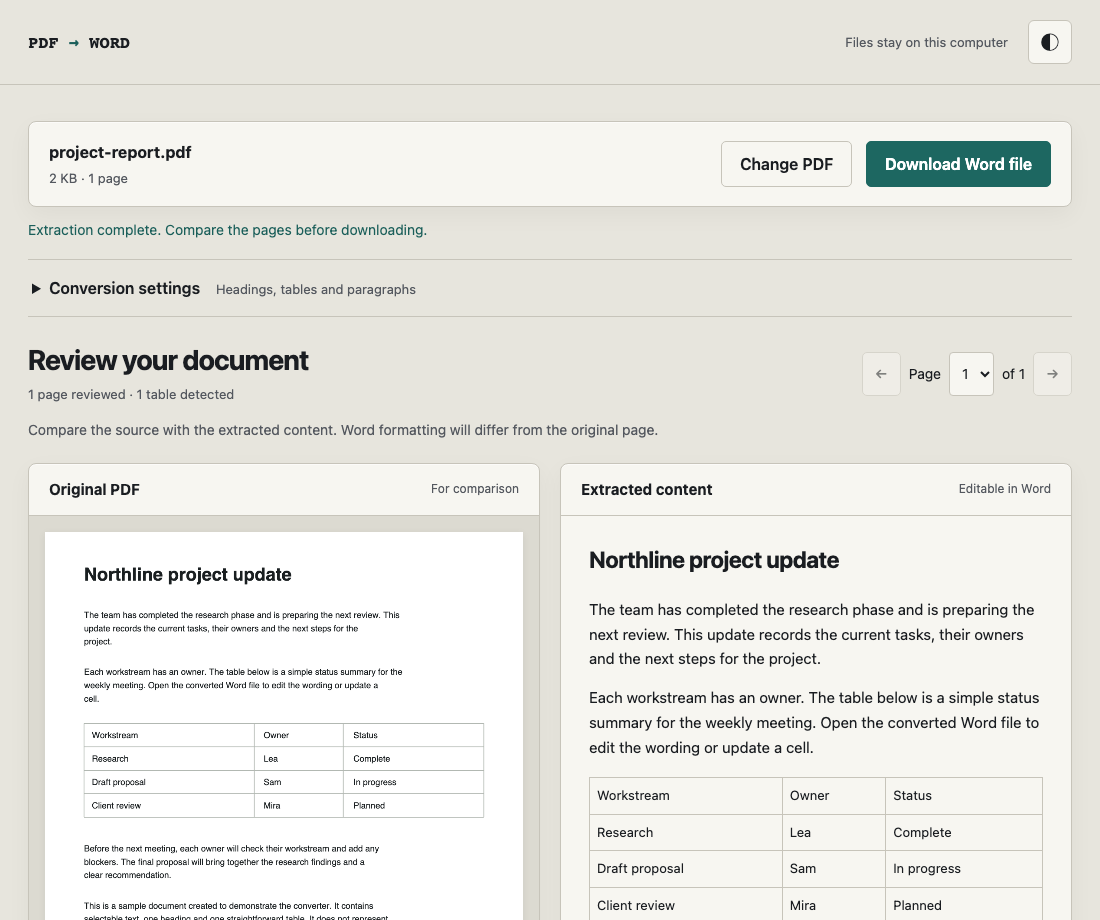
A small project report, converted with this release. Download both files and inspect the result yourself.
One page · One heading · One table
The team has completed the research phase and is preparing the next review. This update records the current tasks, their owners and the next steps for the project.
Each workstream has an owner. The table below is a simple status summary for the weekly meeting. Open the converted Word file to edit the wording or update a cell.
| Workstream | Owner | Status |
| Research | Lea | Complete |
| Draft proposal | Sam | In progress |
| Client review | Mira | Planned |
Before the next meeting, each owner will check their workstream and add any blockers. The final proposal will bring together the research findings and a clear recommendation.
This is a sample document created to demonstrate the converter. It contains selectable text, one heading and one straightforward table. It does not represent a customer document.
The text and table above are read from the generated Word file and displayed here for comparison. Open the download to check its actual Word formatting. This simple sample demonstrates the workflow; complex PDFs can need corrections.
The converter runs inside a single file on your computer. Its PDF reader and Word builder are included, so there is no document upload or online conversion service.
Download it once, open it in your browser, and convert locally. You can disconnect from the internet before opening the converter.
Rebuild the useful structure, then check it against the source.
Join wrapped lines into paragraphs so the text can flow when you edit. Turn this off when a document needs separate lines.
Detect larger text and apply Word heading styles. Automatic detection can need corrections in documents with unusual typography.
Rebuild aligned columns as real Word cells. Check the preview, especially with merged cells, complex tables or multiple columns.
Compare the original PDF with the extracted content. Pages without selectable text are flagged before you download.
Try selecting a sentence in your PDF app. If you can, there is a text layer to work with.
You receive the complete converter as one HTML file. Keep that file wherever you keep your tools.
Download the file from your purchase and open it in a desktop browser. No installation or converter account is needed.
Select your document. Compare each source page with the extracted text and check any warnings. Adjust conversion settings if needed.
Save the .docx, open it in Word or another compatible editor, and check the formatting before you use it.
Release 1.1.0 · Read the tested scope and release notes
The converter processes it locally. All conversion libraries are included in the downloaded file, and its policy blocks network connections. This sales page uses Google Fonts; checkout is hosted by Gumroad.
Use a desktop browser that can open local HTML files. See the release notes for the browsers actually tested with this release. Workplace policies may restrict downloaded HTML files. Mobile file-opening behavior varies, so desktop use is recommended.
No. The tool extracts editable text, detects headings and rebuilds simple tables. It does not reproduce exact layouts or export images and clickable links. Check the sample downloads before buying.
Pages without selectable text are listed for review. If there is text elsewhere in the document, you can explicitly acknowledge the missing content and export it, or run OCR first and convert the fuller document.
There is no paid page quota. Available memory and document complexity affect what your browser can handle. For large PDFs, split the file into smaller parts if necessary. You can cancel extraction.
No. The converter costs $10 once, with no subscription or renewal. Keep the downloaded file and reuse it on your own computers.
A small, reusable tool for turning selectable PDF text into a Word document you can edit.
One-time payment · Download through Gumroad